
Product Updates: May 2026
May 4, 2026
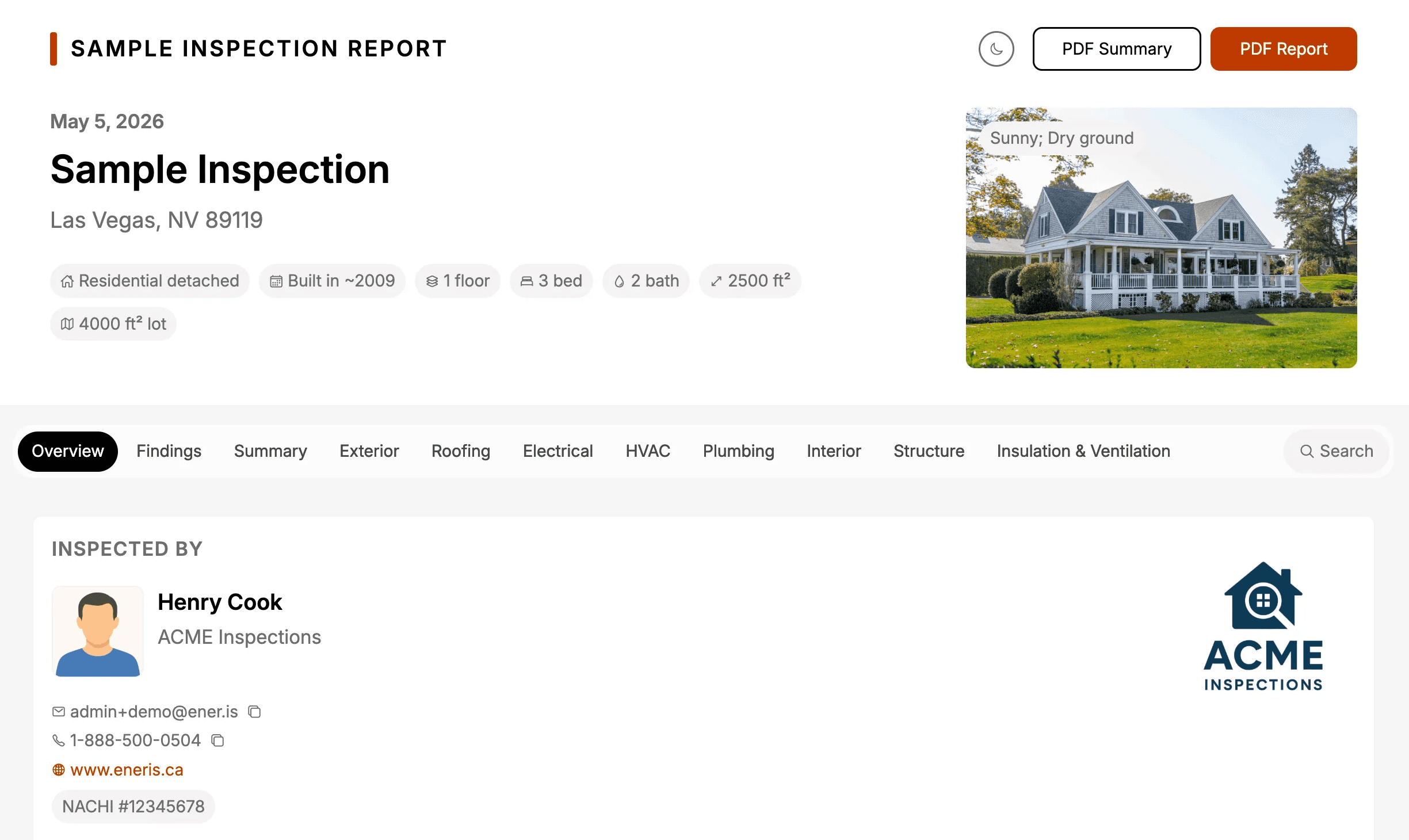
This month we shipped a major upgrade to how clients receive your work alongside a series of refinements to the reporting experience: Web Reports and Reporting Improvements.
To learn more about each feature, see below.
Web Reports
What’s new
When you publish an inspection, your client now can receive an interactive web report in addition to the PDF. The web report gives clients a faster, easier way to read through your findings on any device.
You can preview the web report from inside the app before publishing, and the PDF is still available to download from inside the web report itself.
Why it matters
Easier for clients to read: A modern, interactive layout that works on phones, tablets, and desktops without zooming through a PDF
Findings front and center: An aggregated
Findingssection groups everything that needs attention so clients see priorities at a glanceFaster navigation: Clients can search the entire report or jump between sections instead of scrolling page by page
Professional polish: A branded, shareable link that elevates how your final deliverable feels
Key capabilities
Keyword search: Search across every finding, note, and field in the report
Sticky navigation bar: A tab bar (Overview, Findings, Summary, etc.) stays visible as the page scrolls so clients always know where they are
Full-screen photo and video gallery: Tap any media to view it full-screen with swipe navigation
Findings section: Items needing attention are grouped together so clients can focus on what matters
Light and dark mode: A toggle so clients can read comfortably in any environment
Shareable link and PDF download: Clients can share the link with agents or family members, and the PDF is still downloadable from inside the web report
How it works
Open an inspection and complete your work as usual
Tap
Preview reportto review the web version before publishingTap
Publishto deliver the report: your client receives both the web link and the PDFShare the link with anyone (agents, family members, contractors): the link opens the same interactive web report
Older reports without web enabled will redirect to the PDF automatically, so nothing breaks for past inspections.
To learn more about Web Reports, see the Reports documentation.
Reporting Improvements
Alongside Web Reports, we shipped four refinements to make your reports clearer, more flexible, and more accurate.
General Remarks
The single freeform General notes field has been upgraded with General remarks: five labeled, optional fields that capture the context inspectors actually record. The fields are Weather conditions, Property orientation, Purpose of inspection, Attendees, and Additional notes. The fields appear in both the PDF and the new web report’s Overview.
Why it matters
Less guessing: Clear labels remove ambiguity about what to record at the top of every inspection
Cleaner reports: Labeled context shows up in a structured layout in both the PDF and web report
Existing reports with the old General Notes field are migrated automatically, so your prior work is preserved.
To learn more, see the Inspections documentation.
Field Visibility
A new Disabled option lets you fully hide a field from the form and exclude it from the report. This works for any field, including the five system fields that cannot be deleted (Status, Photos & Videos, Condition, Recommended Action, Summary Label).
The four states are:
Show: Appears in the form and the report
Hide: Appears in the form, excluded from the report
Disabled: Hidden from both the form and the report
Default (component-level only): Inherits the shared field setting
Use Disabled when a field should never appear in your workflow, for example if you don’t use Recommended Action.
Why it matters
Tailor the form to your workflow: Hide fields you never use without cluttering your reports
Cleaner progress tracking: Disabled fields don’t count toward completion, so progress reflects only what you actually fill out
Works on system fields too: Hide built-in fields you don’t use, not just custom ones
To learn more, see the Customizing Form Templates documentation.
Share Your Feedback
Want to help shape our product roadmap? Share your feedback or feature requests at support@eneris.ca.