
Product Updates: November 2026
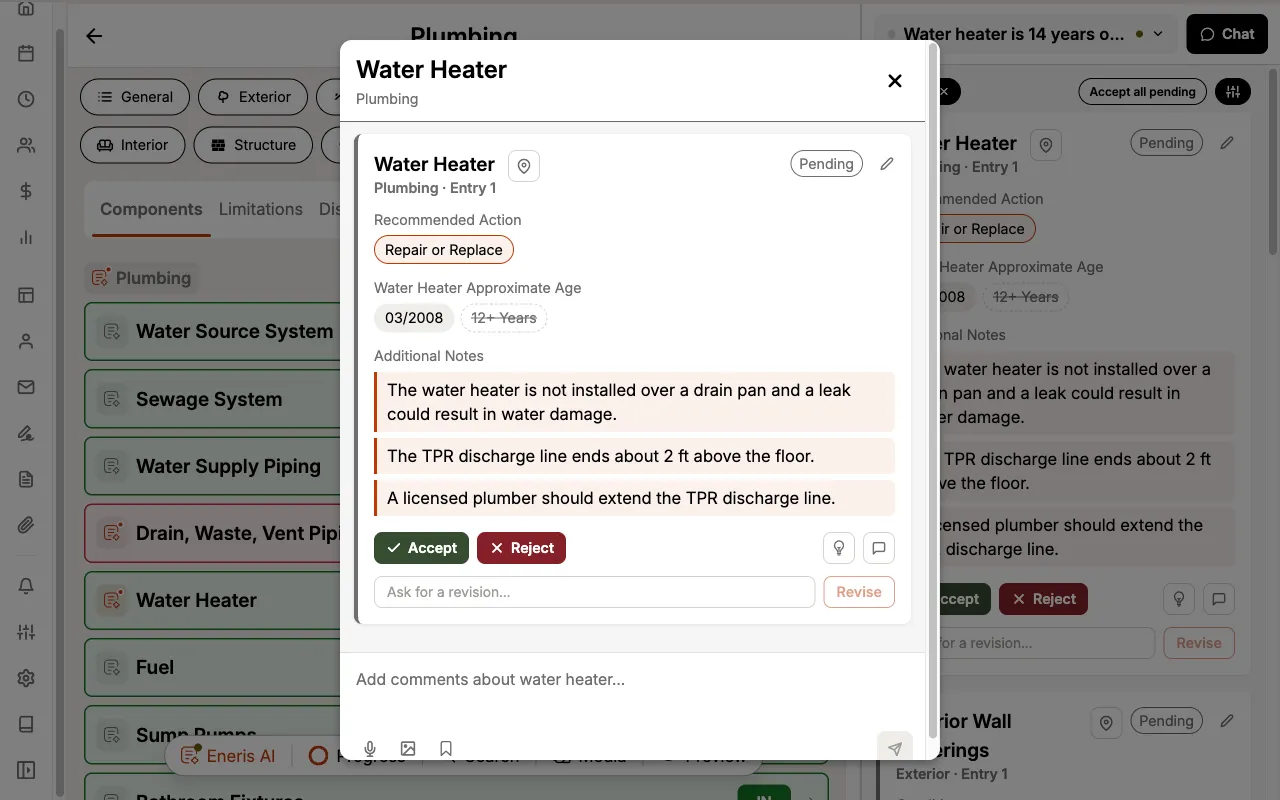
This month we're introducing Eneris AI, built into your Inspection Forms, so every report goes out clean and complete, in your own words, without extra time at the end of your day.
Eneris AI
Finish the report on site
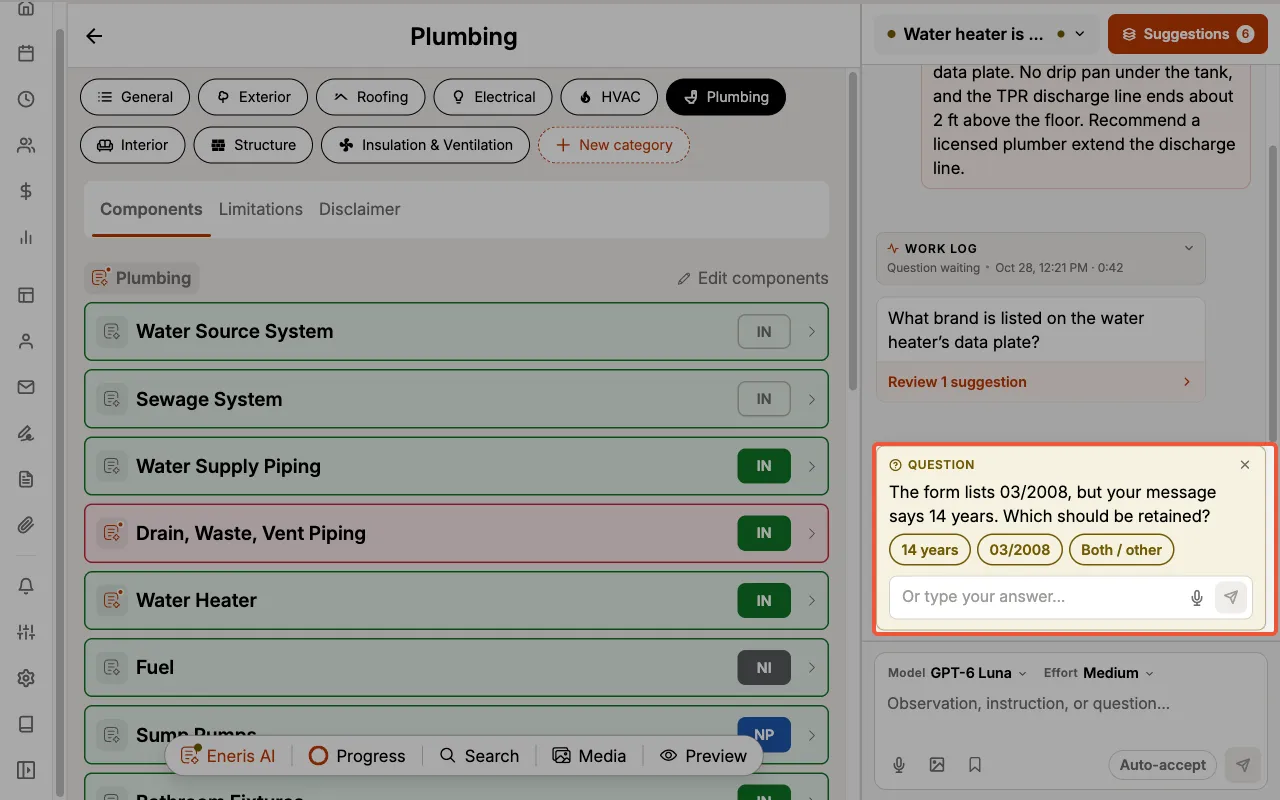
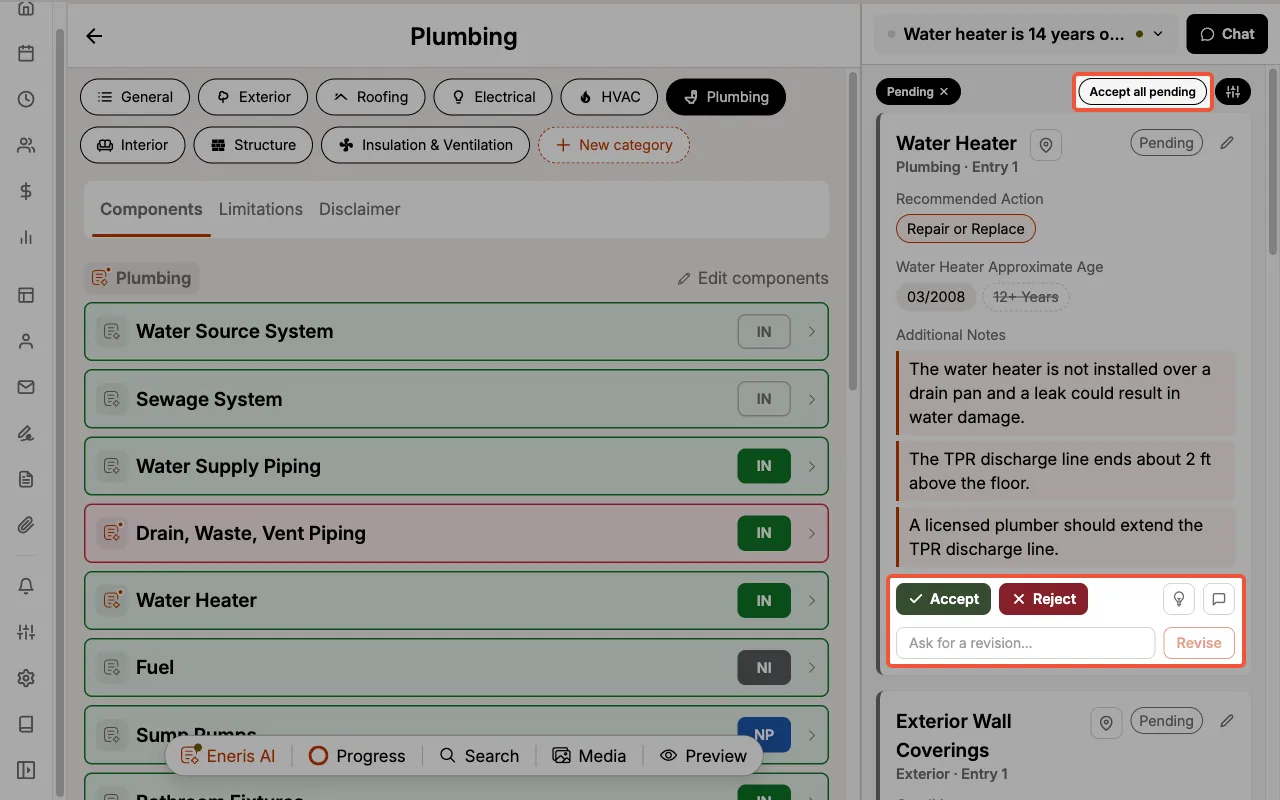
Say what you see, type a quick note, or snap a photo at the component, and Eneris AI drafts the finding in the right place, written the way you write. A note like "Water heater has no drip pan and the TPR discharge line ends 2 ft above the floor" becomes a drafted Water Heater entry while you move on to the next room. It reads appliance data plates for you, and when only you know the answer, it asks.
Publish a cleaner report
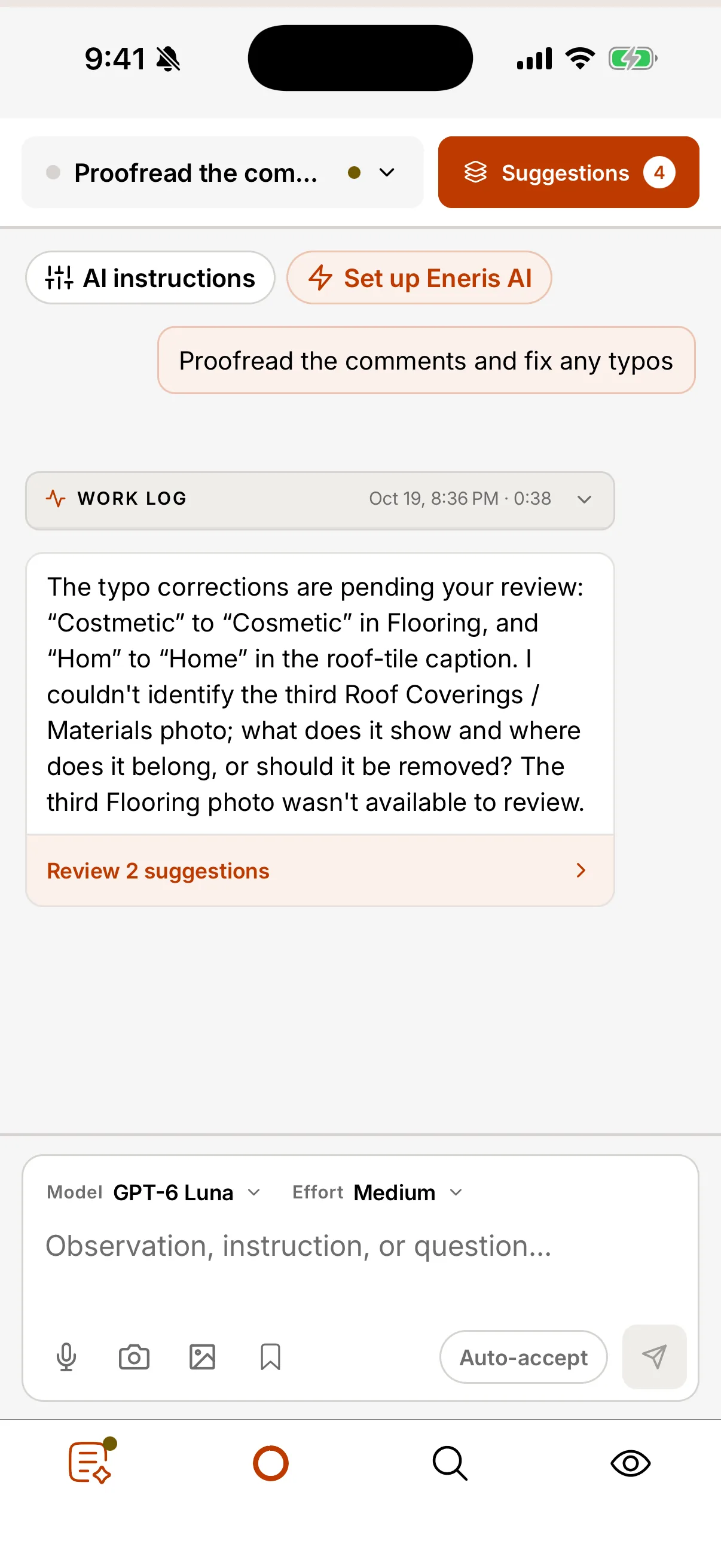
Before you publish, ask for a proofread of the whole form. Typos and inconsistent wording across every section come back as fixes ready to accept, so the report your client reads is polished from the first page to the last.
It writes like you
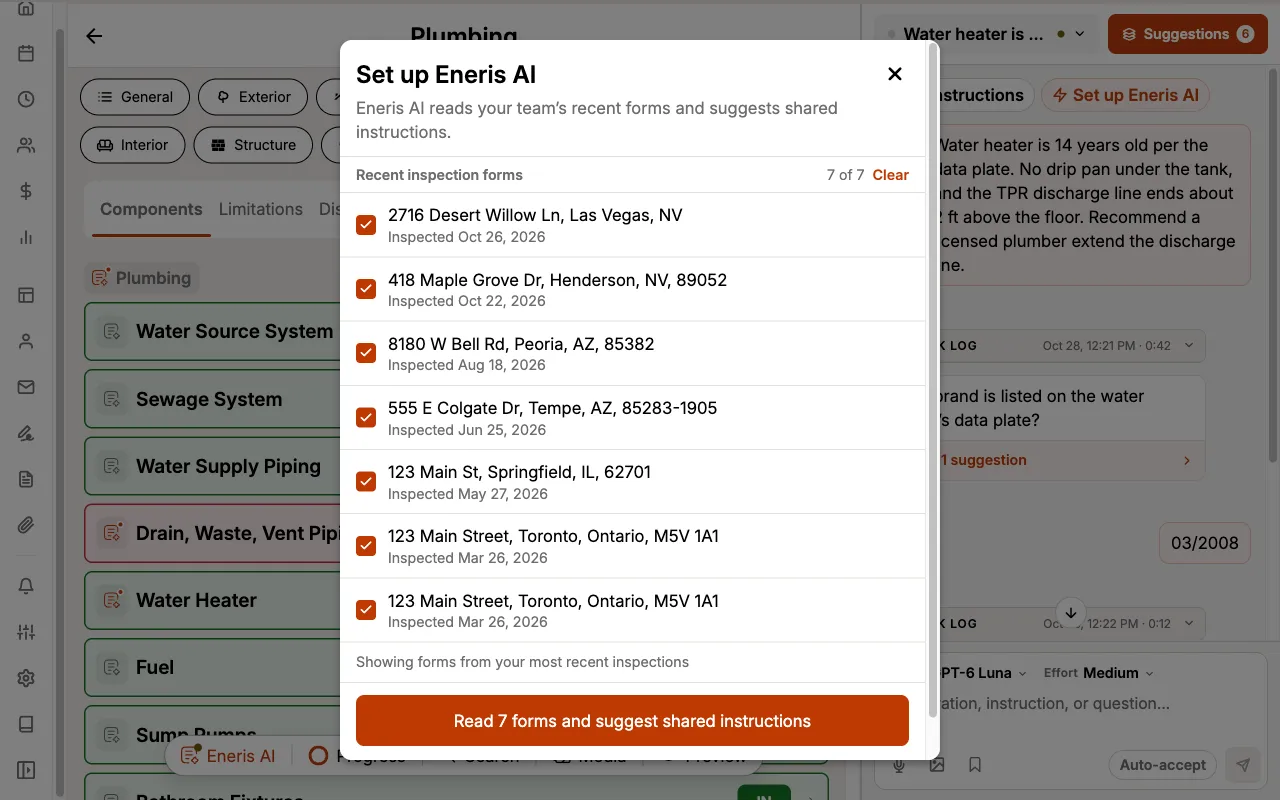
Tell Eneris AI your preferred terms, note length, and phrasing, just for you or for your whole team. Or let it read your recent forms and suggest instructions from how you already write. Every draft carries your voice, so the report still reads like yours.
Nothing changes without you
Eneris AI never edits your form on its own. Every change arrives as a suggestion showing exactly what will change, and nothing reaches your report until you accept it. Changed your mind? Undo it.
Get started
Eneris AI is available to every team, and stays off until you turn it on:
- Select
Preferencesin the sidebar, then underDevice preferencessetEneris AItoEnabledon each device you use - Open any Inspection Form and select
Eneris AIin the Form Tab Bar - Type a note, record a voice note, or take a photo, then review what it suggests
To learn more, including voice notes, offline use, and team instructions, see the Eneris AI documentation.
Share your feedback
If an Eneris AI reply misses the mark, select the thumbs down under it and tell us what went wrong. It comes straight to our team.
For anything else, reach us at support@eneris.ca.