
Product Updates: August 2026
This month we’re introducing two features designed to save you from repeating work you’ve already done: Reference Files and Refine Form Template.
To learn more about each feature, see below.
Reference Files + Appendices
What’s new
You now have a shared library of supporting documents. Upload a file once and you can attach it to an inspection form as an appendix. This is the place for the documents you hand out again and again: diagrams and illustrations that explain a roof layout or a drainage system or homeowner resources like maintenance checklists and seasonal guides.
You can also attach individual files as appendices to the inspection reports. This is especially useful for adding reports of ancillary services, such as radon, solar, and energy audit.
Why it matters
- Stop re-attaching the same documents: Upload a diagram or code excerpt once and reuse it on every inspection that needs it
- More helpful reports: Give clients the supporting material they need to understand your findings, all in one document
- Merge reports together: Keeps reports done outside of Eneris merged together as a single document
Key capabilities
- Team-wide library: A file uploaded by one member is available to the whole team right away, up to 100 files
- Two ways to attach: Pick from the shared library, or use
Upload fileto attach a one-off document to a single form without adding it to the library - Client-friendly names: The name pre-fills from the filename and is yours to edit (3-128 characters), and it’s the name your client sees in the report
- Rename and replace in place: Swap in a new version of a document under the same name and every form referencing it uses the new version going forward
- Published reports stay frozen: A library edit never rewrites a report a client already received
- Lettered appendices: Each attached document appears as
Appendix A - <name>, up to 5 appendices per form - Web and PDF: The PDF report gets a final
Appendicespage with the documents following as full pages, and the web report gets its own appendices section and navigation tab
How it works
- Select
Reference filesfrom the sidebar - Select
Create reference file, thenChoose a fileand pick a PDF, PNG, or JPG from your device - Enter a
Name(this is what appears in the report), then selectAdd to library - To update a document later, select the pencil icon next to it, then rename it or select
Replaceto swap in a new version - Open an inspection form, find the
Appendicescard, and selectAdd new - Select
Add reference fileto choose one or more documents from the team library, then selectDone - Publish the report: each attached document appears as
Appendix A - <name>at the end
Appendices are included in the main PDF report, and supplementary forms (4-Point, Wind Mitigation) publish separately and don’t carry appendices. Managing the library is available to Admins and Schedulers, while Inspectors can browse the library and attach files to the forms they’re working on.
To learn more about Reference Files, see the Reference Files documentation. For attaching them to a form, see Appendices.
Refine Form Template
"I tweak my form on just about every inspection. Being able to look at those changes afterward and pick which ones go back into my template means the template actually gets better over time, instead of me making the same edits over and over."
- Ron W., Home Inspector
What’s new
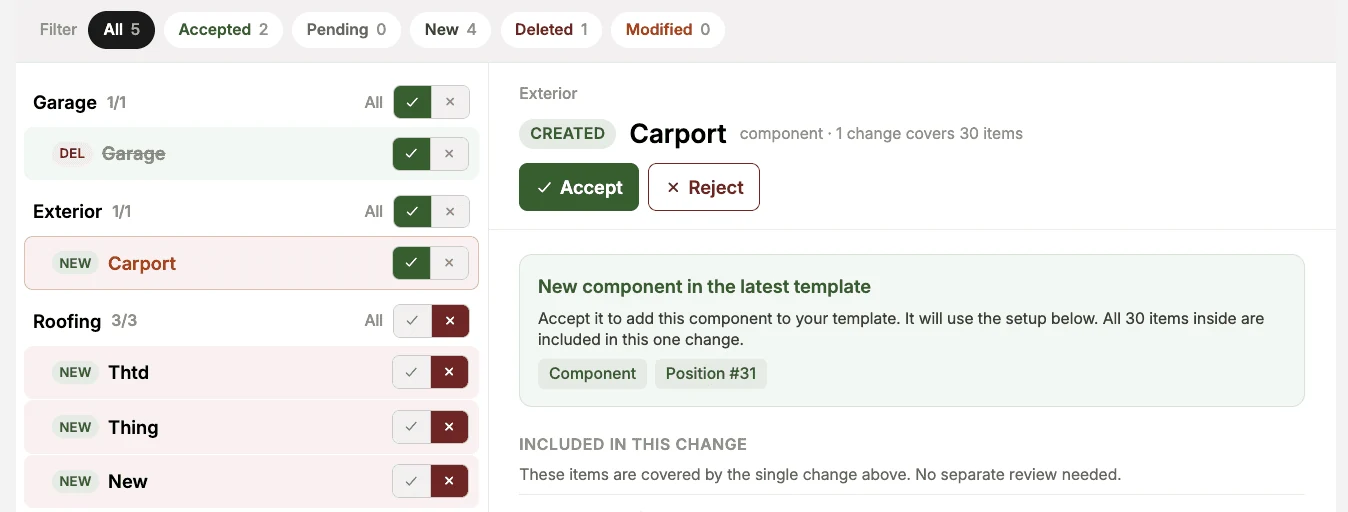
The tweaks you make to an inspection form on site can now become part of your template. When you add a component in the field, rename a field to match how you actually talk about it, or reorder a section into a better walking route, Eneris can show you exactly what changed compared to the template the form came from. You review each difference, accept the ones worth keeping, skip the rest, and fold your picks back into the template so every future inspection starts with the improvement already in place.
Changes are grouped by category and labeled New, Removed, or Modified, and selecting one shows the details (a renamed component displays the old and new names side by side). Nothing is written to your template until you select Apply changes and confirm.
Why it matters
- Your field improvements stick: A better field or a smarter section order carries into every future inspection instead of living in one report
- Build your template by using it: Refine as you go rather than setting aside time to edit templates from scratch
- You decide what’s kept: Every change is its own accept or reject, so a one-off tweak for a single property never has to become permanent
- No surprises: You see the full list and the exact counts before anything is saved
Key capabilities
- Change by change, not all or nothing: Every changed item is its own accept or reject decision, individually or in bulk per category
- Catches the whole form: Added, removed, or renamed categories, components, fields, and field options, plus field requirement and visibility settings
- Reordering is its own change: Reordered categories, components, fields, and options are surfaced with a labeled before and after comparison
- Favorite options merge separately: Your quick-pick favorites can be accepted on their own, independent of other changes to the same field
- Easy to scan: Filter with the
All,Accepted,Pending,New,Removed, andModifiedtabs while a progress bar tracks how many changes you’ve decided on - Nothing saves until you apply: Review as long as you like, then a confirmation dialog summarizes your accepted, rejected, and pending counts before anything is written
How it works
- Open the inspection form containing the changes you’d like to review, find the
Refine form templatesection, and selectReview changes - Alternatively, start from the template: open it, find the
Refine from inspection formsection (it lists forms from inspections in the last 14 days), and select the form you want to review - Right after publishing a report, you can also select the
Refine templateshortcut on the confirmation message to go straight to the same review - On the
Refine Templatepage, select a change to see its details, then selectAcceptto keep it orRejectto skip it - Use the filter chips to work through what’s left, and watch the progress bar to see how many decisions remain
- Select
Apply changesin the top right corner - Review the confirmation dialog, which summarizes your accepted, rejected, and pending counts, then confirm
- A summary screen shows what was saved, with
Review againif you want to revisit the rest
A few notes to keep in mind. Applying a merge updates the template going forward: it never changes the form you just reviewed, other existing forms, or any published report, so only inspections created after the merge pick up the change. Applying can’t be undone, and accepting a removal takes that item and everything inside it out of the template, so it’s worth a look at the confirmation counts before you confirm. Merging changes into a template is available to Admins and Schedulers, so Inspectors can keep making changes in the field and an admin or scheduler folds the good ones in.
To learn more, see Applying Inspection Form changes to the Form Template in the Form Templates documentation.
Upcoming changes
Here are the list of features that we are actively developing:
- Manage and email your clients in a single place
- Invoice dashboard with reporting capabilities
- Additional reporting customizations, such as branding and ordering of sections
Share Your Feedback
In addition to new features, we are also continually working on improving the overall experience and performance of Eneris.
If you have any feedback or feature requests, please reach out to us at support@eneris.ca.