
Product Updates: December 2025
Dec 3, 2025
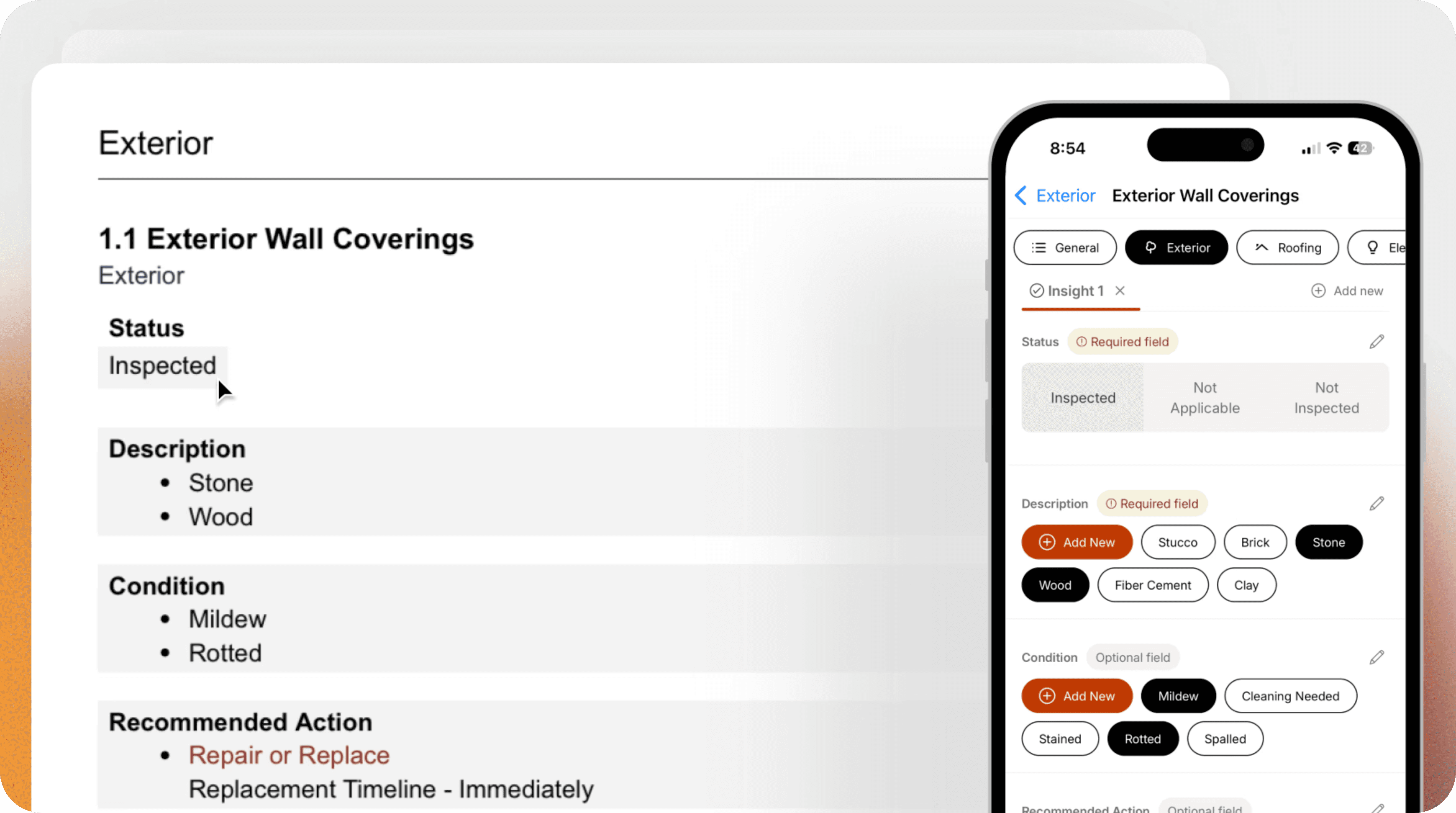
This month we're excited to share two powerful features that will help you communicate more effectively with your clients: Photo Markup Tool and Inspection Summaries.
We also made an improvement to the actionable findings table and the default Condition field. To learn more, see below.
Photo Markup Tool
What's new
Add visual annotations directly to your inspection photos to highlight specific areas of concern or provide additional context for your clients. The markup interface includes:
Pen tool — Draw freehand lines to circle areas, underline text, or sketch annotations
Shapes — Add circles, rectangles, lines, and arrows to highlight specific areas
Colors — Choose from multiple colors to make your annotations stand out
Undo — Revert your last annotation action to correct mistakes
Clear — Remove all annotations and start fresh
Why it matters
Draw attention to defects — Circle cracks, highlight water damage, or point out specific issues that might otherwise be missed
Add clarity — Use arrows and shapes to make your findings unmistakable
Reduce follow-up questions — Help your clients quickly understand exactly what you're pointing out in each photo
How it works
Navigate to any component where you want to add an annotated photo
Locate the media field and take a new photo or select an existing one
Tap the photo to open the markup interface
Use the annotation tools to mark up the photo
Select Save to apply your annotations

Inspection Summary (PDF Summaries)
What's new
You can now generate two different types (or both) of documents from your inspections:
Inspection Report — Your comprehensive PDF containing all inspection details, findings, media, and entered data
Inspection Summary — A new condensed PDF that focuses on key summaries and highlights from your inspection
Why it matters
Quick client reviews — Clients who need a fast overview of key findings can get the highlights without reading the full report
Executive summaries — Perfect for decision-makers who want to understand the big picture
Flexible sharing — Share highlights before the full report is complete, or provide both for comprehensive documentation
How it works
Complete your inspection form and add components to the summary label field
Navigate to the Publish button
Select which document(s) to generate. You can publish the Report only, Summary only, or both together
When you share the report with your clients, the selected PDF documents will be available to them
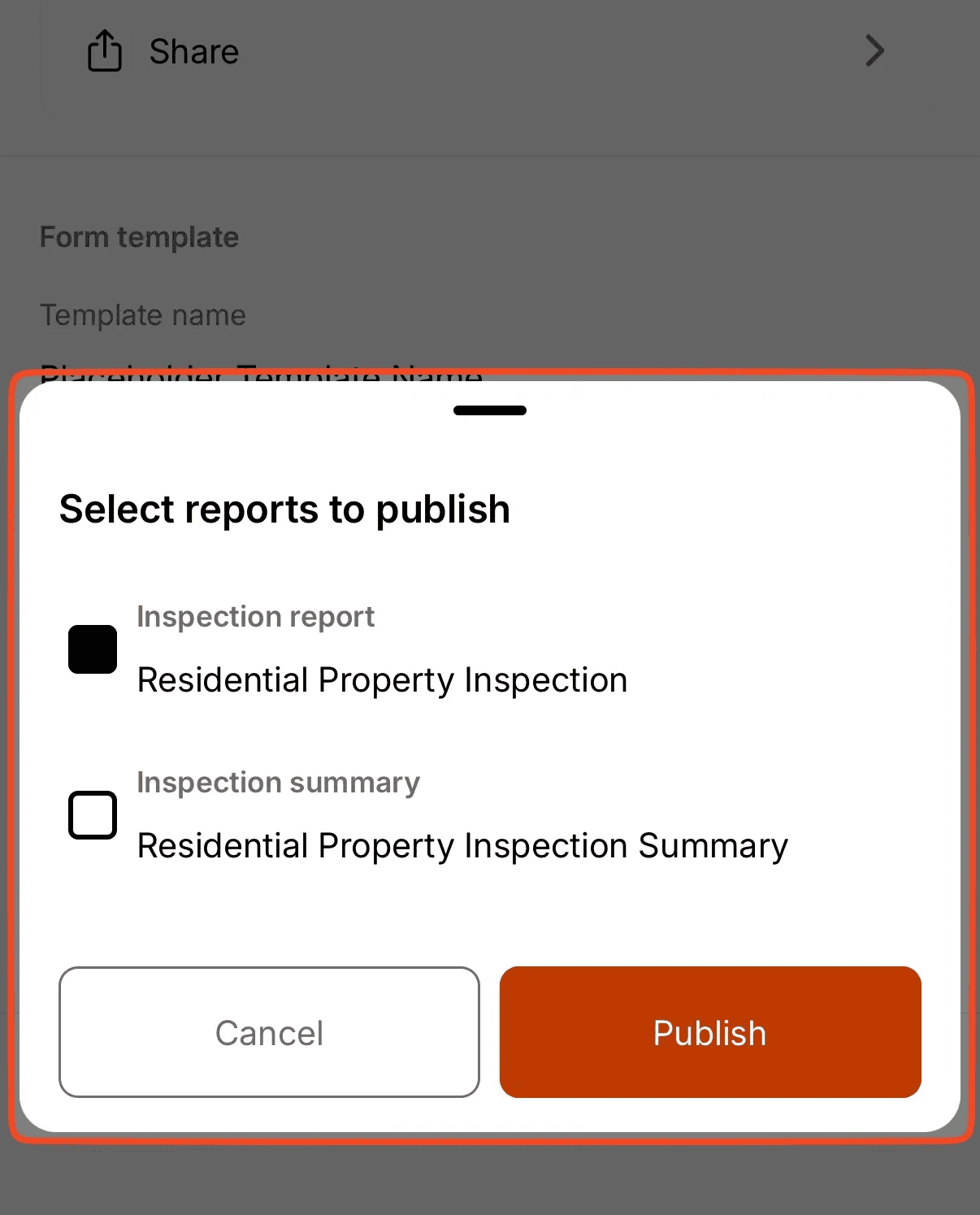
Note: You can also preview the PDF Summary by selecting the ellipsis next to the Preview changes button.
Actionable findings table and Condition field changes
As an improvement to the PDF report, we added the condition field column to the actionable findings table, and removed the nested field column. Clients can now quickly see the condition with the recommended action. Clickable page numbers are unchanged. In order to make this work, we have made the condition field a mandatory field.
If you have an existing template that would like to have the conditions appear in your actionable findings table, please email support@eneris.ca with the name of the template(s) and we can migrate them over.
Thank you for your support
In addition to the features that you see here, we are working tirelessly to bring you more. Building a simple yet robust product is always top of mind for us at Eneris.
Your support and feedback is everything to us. Thank you for joining us on this journey.