
Product Updates: September 2026 (Part I)
Sep 6, 2026
August was the biggest month we have ever shipped, which is why we are splitting the update in two parts.
In this update, we will focus on reporting: Report Customizations, media folder, reference images, and a redesigned, sharper PDF.
To learn more about each feature, see below.
Report Customizations
What’s new
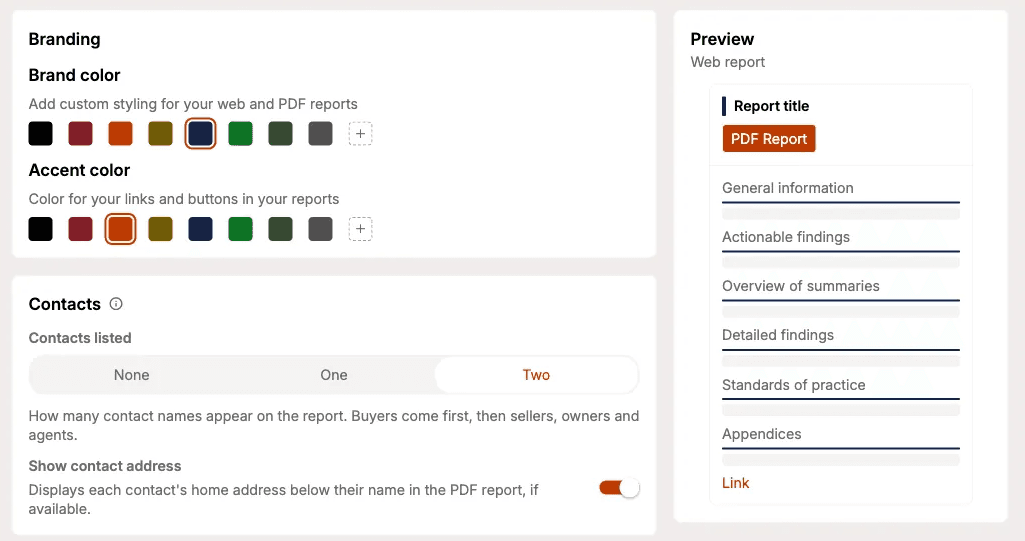
Your reports can now share the same branding as your business. Report Preferences give you control over colors, the contacts listed on the cover, the title page layout, and which sections appear in what order.
Three report types are configured independently, Web report, PDF report, and PDF summary.
Why it matters
Reports that carry your brand: Your branded colors on every report a client opens
White-label when you need it: Set
Contacts listedtoNone, which referral partners and property managers often ask forShape the report to your practice: Turn off the sections you never use, and put what clients read first at the top
Key capabilities
Brand and accent colors: Eight swatches to pick from or bring your own custom colors
Section order and visibility: Toggle and reorder Invoice, Actionable findings, General information, Summary sections, Detailed findings, Service agreement, Standards of practice, and Appendices.
3 PDF title page layout to choose from:
Banner(title and address over the photo),Stacked(photo leads), orClassic(centered title)Online report QR code: A code on the PDF title page that opens the web report
How it works
Select
Preferencesfrom the sidebar, thenReport preferencesSet your
Brand colorandAccent colorSet
Contacts listedand whether toShow contact addressSwitch between the
Web report,PDF report, andPDF summarytabs to configure each oneOn the PDF tabs, pick a title page layout and toggle the
Online report QR codeToggle sections on or off and move them with the up and down arrows
Check the live preview, then save, or select
Restore defaultsto start again
To learn more, see the Preferences documentation.
Cover Letter
The cover letter is a short message to your client, sitting right after the title page in the PDF and appearing on the web report. You write it once on the Inspector Profile and it will appear on all your inspection reports if it’s enabled.
You may also optionally include your signature into the cover letter.
To learn more, see the Cover letter section of the Inspector Profiles documentation.
Media Folder
What’s new
If you shoot the property on a real camera and offload the card to a laptop, getting those photos into the report has meant hunting through a file picker one at a time. Now you point Eneris at the folder once and every photo from that job lines up beside the form, ready to drag straight into the report, saving you time and keeping your progress tidy.
Why it matters
One pick instead of dozens: Choose the folder once and every photo from that job stays a drag away
Shot order is the order you see: Photos appear in the sequence you took them, usually the order you walked the property
Know what is left: The
Unattachedtab shows which photos have not made it into the report yet
Key capabilities
Two views: Sort by shooting order or folders
AllandUnattachedtabs: The unattached tab keeps track of which photos and videos have not been added to the inspection formDrag to any target: Component media fields, the report’s primary photo, and appendices all accept media files
How it works
Open an inspection form in a desktop browser and open the
MediapanelSelect
Choose folderand pick the folder with this job’s photosSwitch between the Time and Folders views depending on how you sorted your card
Drag a file onto a component’s media field, the primary photo, or an appendix
Check the
Unattachedtab as you go to see what still needs a home
Reference Images
What’s new
Some components are easier to explain with a picture that is not from the property: a diagram of correct flashing or a manufacturer’s data plate. Reference images is a new field type on your form templates.
This builds on the Reference Files library we announced last month, and the two work in different places. Reference Files are whole documents printed as lettered appendices at the end of the report. Reference images sit inside the finding itself, where your client is already reading. Pull them from the same shared Reference file library, or use Upload directly for one from your device.
Why it matters
Explain the finding where it lives: The diagram sits next to the defect instead of at the back of the report, so your client sees both at once
Reuse your best explainers: The pictures you reach for again and again come from the shared library, already named
Build it into the template: Add the field once and it is on every inspection using that template
To learn more, see the Reference images fields section of the Customizing Form Templates documentation.
A Sharper PDF Report
What’s new
Your reports are now shorter and easier to read. The average report is about 20% shorter in length without leaving anything out.
Each section also opens with a Summary of components table, so the general information about that category sits right at the top, before a client works through the detail.
Why it matters
Shorter reports, same detail: About 20% fewer pages on average, with nothing removed
Oriented before the detail: Each section leads with the general information about that system, so clients know what they are looking at
Stay tuned for Part II
That covers report customizations, speeding up photo and video uploads, adding reference diagrams and illustrations, and a shorter, cleaner PDF.
Part II will touch on how you communicate with clients, and tools to help you run your business.