
Product Updates: June 2026
Jun 11, 2026
This month we shipped several updates to improve how you book, bill, and serve your clients: Online Scheduling, Payment Collection, and Wind Mitigation & 4-Point Inspections for the Florida insurance market.
To learn more about each feature, see below.
Online Scheduling
What's new
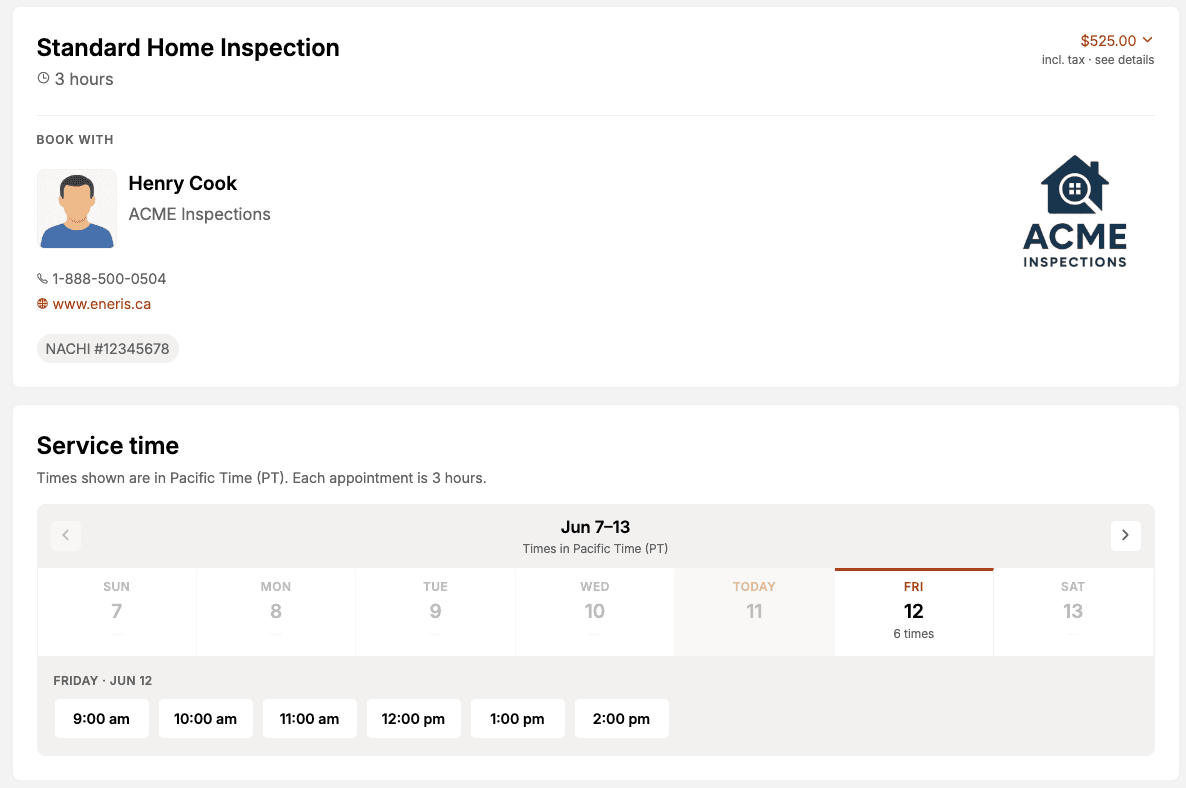
Skip the back-and-forth of finding a time that works. With Online Scheduling, you publish a shareable booking page where clients pick an open time slot, enter the property address and their contact details, and submit a booking request without ever signing in. You review each request in the new Bookings section and accept or reject it.
When you accept a request, Eneris does the setup for you: it creates the inspection, builds the inspection form from your chosen template, adds the client as a contact, and (if your page includes quote line items) generates the unpaid invoice automatically. The client receives a confirmation email at every step, so everyone stays in the loop.
You can run multiple booking pages per team, for example a different page for each service, inspector, or region. Each page is fully configurable.
Why it matters
Fewer phone calls: Clients self-serve a time that works, so you spend less time coordinating
No double-bookings: Conflict blocking checks against your existing inspections and pending requests, with optional buffer time between jobs
Less manual setup: Accepting a request creates the inspection, form, contact, and invoice for you
Always on: Your booking page takes requests around the clock, even when you are out on a job
Key capabilities
Multiple booking pages: Run separate pages for different services, inspectors, or regions
Conflict blocking: Availability automatically hides slots that overlap existing inspections or pending requests
Inline quotes: Show clients line items, taxes, and a total before they submit
Automatic creation on accept: The inspection, form, contact, and invoice are generated when you accept
Configurable availability: Control weekly windows, lead time, booking horizon, and slot interval
Custom appearance: Set a light, dark, or system theme and a custom success message on the public page
Team notifications: CC additional members on booking notifications and reuse pages by duplicating them
Role-scoped access: Admins and Schedulers manage all pages and requests, while Inspectors act on requests for their own profile
Pending request alerts: A notification dot appears on the
Bookingsmenu when requests are waiting
How it works
Select
Bookingsfrom the side menu, then open theBooking pagestabSelect
New booking pageto start blank or duplicate an existing pageConfigure the
General,Service Details,Availability, andClient FieldssectionsCreate the page, then share the booking link using the copy icon or
Open booking linkWhen a client submits, review it on the
Booking requeststabSelect
Acceptto create the inspection, form, contact, and invoice, orRejectorModify requestwhile the request is pending
To learn more about Online Scheduling, see the Online Scheduling documentation.
Payment Collection
What's new
Get paid directly through Eneris. Connect a payment account once (powered by Stripe) and every invoice gains a Collect payment option. You can Take payment now on a secure checkout page where the client pays by card or a wallet like Apple Pay on the spot, or Email invoice to send the client a payable invoice. The invoice updates on its own when the payment comes through, so you are not chasing down whether something cleared.
Payouts go straight to your own bank account, and you can still record offline payments manually when a client pays by cash, check, debit card, credit card, bank transfer, peer-to-peer, or other methods. Invoice statuses cover Sent, Paid, Refunded, Voided, and Failed, giving you a clear picture of where every invoice stands.
Eneris does not charge any additional fee to collect payments. Stripe's standard processing fee applies (2.9% + $0.30).
Why it matters
Faster payment: Take a card on the spot or email a payable invoice instead of waiting on a check
No manual reconciling: Invoices are marked
Paidautomatically when payment is receivedDirect deposits: Payouts land in your own bank account
Flexible options: Accept cards and wallets, or record cash and check payments manually
How it works
Navigate to
Invoicingfrom the hamburger menu and select thePaymentstabSelect
Set up payments, choose your business country (Canada or United States), and selectContinueComplete the secure onboarding steps (business details and banking); your account shows
Activeonce approvedOpen an inspection's invoice and select
Collect paymentChoose
Take payment nowto have the client pay by card on the spot, orEmail invoiceto send a payable invoiceThe invoice is marked
Paidautomatically when payment is received
To learn more about Payment Collection, see the Invoicing and Payment Collection documentation.
Wind Mitigation & 4-Point Inspections (Florida)
What's new
If you work the Florida insurance market, two supplementary form templates are now built into Eneris: the Uniform Mitigation Verification Inspection (wind mitigation, the current 2026 OIR-B1-1802 form) and the 4-Point Inspection (the Insp4pt 03 25 form). You complete them in the standard Eneris form interface alongside the main inspection, and publishing generates a filled, flattened, insurer-ready PDF delivered right beside the main report.
Owner and client name, property address, year built, inspection date, and contact details pre-fill from the parent inspection and stay editable. Photos you attach are organized by section onto dedicated captioned pages in the PDF, and your inspector profile signature embeds automatically. Both templates match the current official Florida forms and are kept up to date as those forms change.
The two templates cover:
Uniform Mitigation Verification Inspection: Building Code, Roof Covering, Roof Deck Attachment, Roof-to-Wall Attachment, Roof Geometry, Secondary Water Resistance, and Opening Protection
4-Point Inspection: Electrical, HVAC, Plumbing, and Roof
Why it matters
Insurer-ready output: Generate a filled, flattened PDF that matches the current official Florida forms
Less re-entry: Property and client details auto-populate from the parent inspection
Always current: Templates track the latest official form versions for you
Organized photos: Photos are placed by section onto dedicated captioned pages, with your signature embedded
How it works
Select
Form templatesfrom the hamburger menu, thenCreate new form templateIn the
Create fromlist, choose4-Point InspectionorUniform Mitigation Verification Inspection, give it a name, and create itAdd the template to a new inspection via the Form Template dropdown, or to an existing inspection via
Inspection FormsandAdd newOpen the form: owner and client name, property address, year built, inspection date, and contact details are pre-filled and editable
Complete the sections and attach photos to the applicable sections
Publish; the PDF appears under Report links as
4-Point Inspection (PDF)orUniform Mitigation Verification Inspection (PDF)and can be emailed alongside the main inspection report
A quick tip: complete the main home inspection first, then add the supplementary form to the same inspection so property and client details carry over automatically. These templates also work with Online Scheduling, so a booking page can use them directly.
To learn more about supplementary forms, see the Form Templates documentation.